Parent Log In Instructions
Infinite Campus (IC) is a valuable online tool that centralizes student information. It enables parents/guardians to easily track their student's academic performance. Parents/ guardians can see information for all their children within the same account.
Step 1: Enter Parent Username and Password
Step 2: Click Log In
Recover Your Account
Parents/ Guardians can easily recover your parent account password for the IC Portal anytime, even outside of school hours. Click here to navigate to the
Parent Portal.
Forgot your username:
-
Click on the "Forgot Username?" link on the Campus login screen.
-
Enter the email address you provided when setting up your security preferences.
- An email containing your username will be sent to that email address.
Forgot your password:
-
Click on the "Forgot Password?" link on the Campus login screen.
-
Enter your username.
-
An email with password recovery instructions will be sent to the email address you provided when setting up your security preferences.
If you are still having issues logging in please contact the
Help Desk for assistance. Please include your name, student(s) name(s), student(s) ID number(s) and the issue are you having.
New User (Have an Activation Key)
New to Infinite Campus, follow the instructions below to set up you account.
Step 1: Click on the New User?
Step 2: Enter the Activation Key(Provided at the time of registration or obtain one from your student(s) school)
Step 3: Create Username and Password
Update Security Email/ Password
-
Click on the person icon located on the top right of the screen
-
Under the profile options, click Settings.
-
Click Account Settings
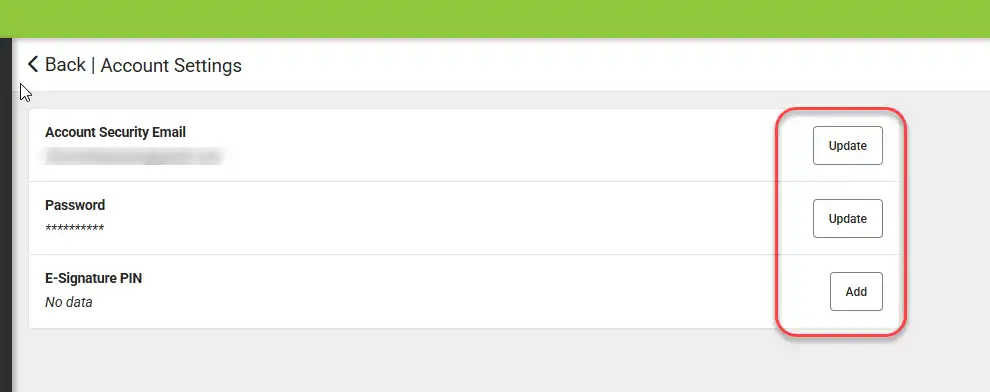
Parent - Access Settings
Click here to navigate to the Parent Portal
-
Click on the person icon on the top right of the screen
-
Under the profile options, click Settings
-
You can now view the available settings options:
-
Click Notification Settings to make changes
-
Click Account Settings to make changes
-
Click Current device to view the devices currently logged into the mobile app.
Notification Settings
-
Click on the person icon located on the top right of the screen
-
Under the profile options, click Settings.
-
Click Notification Settings
-
Grade/Score Threshold: Only receive notifications when a grade or score falls below the selected percentage.
-
Attendance Updates: Receive notifications when attendance is updated
- Threshold Adjustment:
View Calendar
Step 1: Tap the three horizontal bars("hamburger" icon) located in the top left corner. This will open the main menu.
Step 2: Click On Calendar
- Click on Assignments tab to view assignment due by date.
- Click on Schedule tab to view the schedule by date.
- Click on Attendance tab to view attendance update by date.
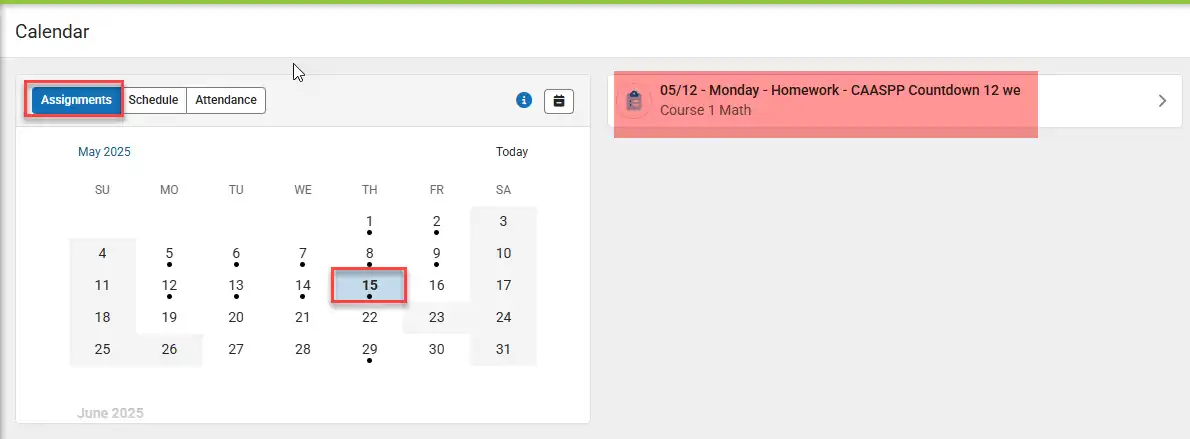
View Assignments
Step 1: Tap the three horizontal bars("hamburger" icon) located in the top left corner. This will open the main menu.
Step 2: Click on Assignments to view the list of assignments
- Click on Missings tab to view missing assignments.
- Click on Current Term tab to view assignments due for current term only.
- Clicking on both Missing and Current Term will show you all assignments missing for the current term only.
View Grades
Step 1: Tap the three horizontal bars("hamburger" icon) located in the top left corner. This will open the main menu.
Step 2: Click Grades to view grades for each term or for all terms
View Grade Book Update
Step 1: Tap the three horizontal bars("hamburger" icon) located in the top left corner. This will open the main menu.
Step 2: Click on Grade Book Updates to view the recent assignment scores.
View Attendance
Step 1: Tap the three horizontal bars("hamburger" icon) located in the top left corner. This will open the main menu.
Step 2: Click on Attendance to view absense and tardy days.
View Schedule
Step 1: Tap the three horizontal bars("hamburger" icon) located in the top left corner. This will open the main menu.
Step 2: Click on Schedule to view the schedule
View Responsive Schedule
Step 1: Tap the three horizontal bars("hamburger" icon) located in the top left corner. This will open the main menu.
Step 2: Click on Responsive Schedule
Step 3: Select a responsive period from the drop down menu to view the schedule selected by the student - the selection will have a check mark next to it.
View/Pay Fees
Step 1: Tap the three horizontal bars("hamburger" icon) located in the top left corner. This will open the main menu.
Step 2: Click on Fees to view Fee Balance
Step 3: Add Payment Method and provide a valid email address for the receipt.
Step 4: Dont' forget to click Submit Payment.
School Store / Insurance Purchase
Step 1: Tap the three horizontal bars("hamburger" icon) located in the top left corner. This will open the main menu.
Step 2: Click on School Store
Step 3: Click on Shop under the school name
Step 4: Click on Products
Step 5: Click on View under the product you would like to purchase
Step 6: A pop up will open on the right side of the screen. Select the recepient from the drop down menu and Add to Cart.
Step 7: Click My Cart to view items in cart
Step 8: Add a payment method
Step 9: Add a valid email address
Step 10: Don't forget to click Submit Payment
View Transcripts
Step 1: Tap the three horizontal bars("hamburger" icon) located in the top left corner. This will open the main menu.
Step 2: Click on the report you want to view/print and the report will open in a new window.
View Message Center
Step 1: Tap the three horizontal bars("hamburger" icon) located in the top left corner. This will open the main menu.
Step 2: Click on the message you would like to view
Update Address Information
Step 1: Tap the three horizontal bars("hamburger" icon) located in the top left corner. This will open the main menu.
Step 2: Click More
Step 3: Click Address Information
Step 4: Click Update to update phone number or Primary mailing address
View Assessments
Step 1: Tap the three horizontal bars("hamburger" icon) located in the top left corner. This will open the main menu.
Step 2: Click More
Step 3: Click Assessments to view assessment scores. Scroll all the way down, select language from the drop down option and click Generate
Update Family/Contact Information
Step 1: Log into the Campus Parent Portal.
Step 2: Click on "More" and then select "Family Information" from the menu

Step 3: Click Update and change information as needed
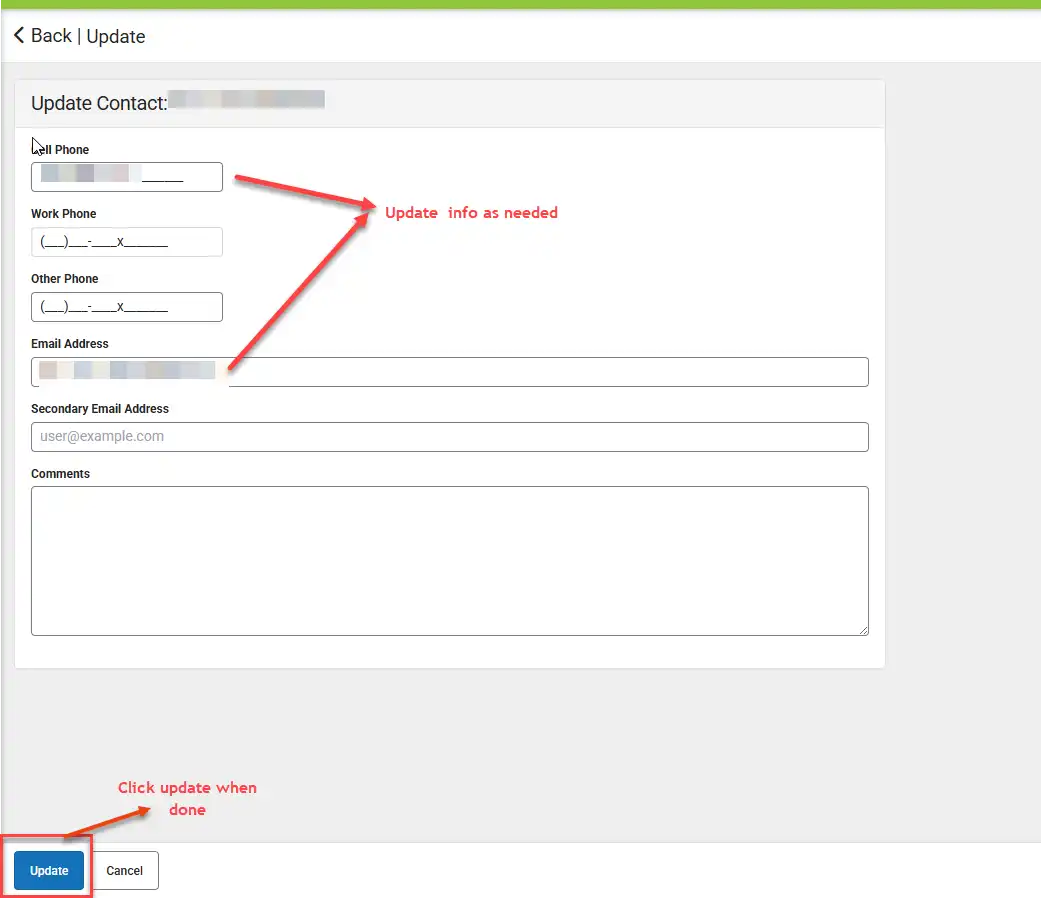
Step 4: Click on "Update" when done.
View/Update Demographics
Step 1: Tap the three horizontal bars("hamburger" icon) located in the top left corner. This will open the main menu.
Step 2: Click More
Step 3: Click Demographics
Step 4: Click Update to make changes to the Non-Household Relationships
- Click 'Add' to add a new contact
Step 5: Input the required information and click Add
View Health
Step 1: Tap the three horizontal bars("hamburger" icon) located in the top left corner. This will open the main menu.
Step 2: Click More
Step 3: Click Health
Step 4: Click Immunizations to view immunization info
View Important Dates
Step 1: Tap the three horizontal bars("hamburger" icon) located in the top left corner. This will open the main menu.
Step 2: Click More
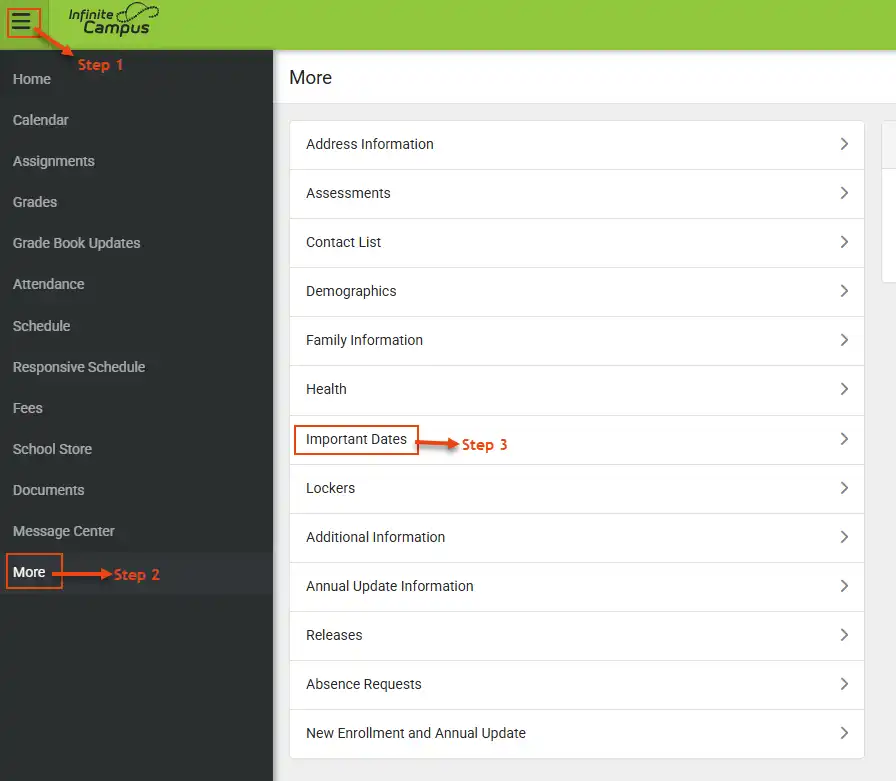
Step 3: Click Important Dates to view school recess and events
View Lockers Info
Step 1: Tap the three horizontal bars("hamburger" icon) located in the top left corner. This will open the main menu.
Step 2: Click More
Step 3: Click Lockers to view locker info
View Additional Information
Step 1: Tap the three horizontal bars("hamburger" icon) located in the top left corner. This will open the main menu.
Step 2: Click More
Step 3: Click Additional Information to view Parent's Rights Option
View Annual Update Information
Step 1: Tap the three horizontal bars("hamburger" icon) located in the top left corner. This will open the main menu.
Step 2: Click
More
Step 3: Click Annual Update Information to view info submitted during annual update
View Releases
Step 1: Tap the three horizontal bars("hamburger" icon) located in the top left corner. This will open the main menu.
Step 2: Click
More
Step 3: Click Releases to view releases info submitted during annual update
Annual Update/ New Enrollment
Step 1: Tap the three horizontal bars("hamburger" icon) located in the top left corner. This will open the main menu.
Step 2: Click More
Step 3: Click on New Enrollment and Annual Update
Step 4: Click on Start to start a new application/annual update
Mobile App
Is there a mobile app to access Infinite Campus?
Yes, a Campus Parent app is available for Andriod or Apple mobile devices.
-
Download the latest Campus Parent app from Google Play Store or App Store .
-
Enter the following information:
-
Press "Search".
-
Select San Ramon Valley Unified.
-
Enter your username and password.
-
Press "Log In".


