Student Log In Instructions
Infinite Campus (IC) is a valuable online tool that centralizes student information. Students can access their academic related information like assignments, grades, scores etc.
Step 1: Click on the Classlink button
Step 2: Click on Sign in with Microsoft
Step 3: Enter your district email address for example:123456@STUDENTS.SRVUSD.NET and click Next
Email address format is Student ID # followed by @students.srvusd.net. If you do not have your student ID number, please contact your school site to obtain one
Step 4: Enter your password
Step 4: Click "Yes" on this prompt and you are now logged into IC.
Notification Settings
- Click on the person icon located on the top right of the screen
-
Under the profile options, click Settings.
-
Click Notification Settings
-
Grade/Score Threshold: Only receive notifications when a grade or score falls below the selected percentage.
-
Attendance Updates: Receive notifications when attendance is updated
- Threshold Adjustment:
View Calendar
Step 1: Tap the three horizontal bars("hamburger" icon) located in the top left corner. This will open the main menu.
Step 2: Click On Calendar
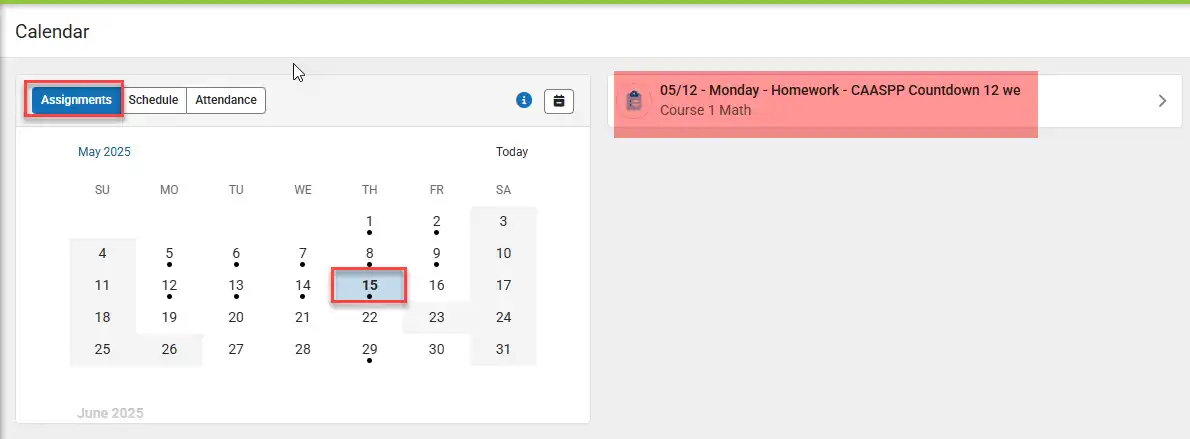
- Click on Assignments tab to view assignment due by date.
- Click on Schedule tab to view the schedule by date.
- Click on Attendance tab to view attendance update by date.
View Assignments
Step 1: Tap the three horizontal bars("hamburger" icon) located in the top left corner. This will open the main menu.
Step 2: Click on Assignments to view the list of assignments
- Click on Missings tab to view missing assignments.
- Click on Current Term tab to view assignments due for current term only.
- Clicking on both Missing and Current Term will show you all assignments missing for the current term only.
View Grades
Step 1: Tap the three horizontal bars("hamburger" icon) located in the top left corner. This will open the main menu.
Step 2: Click Grades to view grades for each term or for all terms
View Grade Book Update
Step 1: Tap the three horizontal bars("hamburger" icon) located in the top left corner. This will open the main menu.
Step 2: Click on Grade Book Updates to view the recent assignment scores.
View Attendance
Step 1: Tap the three horizontal bars("hamburger" icon) located in the top left corner. This will open the main menu.
Step 2: Click on Attendance to view absense and tardy days.
View Schedule
Step 1: Tap the three horizontal bars("hamburger" icon) located in the top left corner. This will open the main menu.
Step 2: Click on Schedule to view the schedule
Responsive Schedule - Student Support
Step 1: Tap the three horizontal bars("hamburger" icon) located in the top left corner. This will open the main menu.
Step 2: Click on Responsive Schedule
Step 3: Select a responsive period from the drop down menu
Step 4: Select the appropriate responsive period from the available options by clicking on the radio button next to the session.
Step 5: Click "Save" to submit your request.
View/Pay Fees
Step 1: Tap the three horizontal bars("hamburger" icon) located in the top left corner. This will open the main menu.
Step 2: Click on Fees to view Fee Balance
Step 3: Add Payment Method and provide a valid email address for the receipt.
Step 4: Dont' forget to click Submit Payment.
View Transcripts
Step 1: Tap the three horizontal bars("hamburger" icon) located in the top left corner. This will open the main menu.
Step 2: Click on the report you want to view/print and the report will open in a new window.
View Message Center
Step 1: Tap the three horizontal bars("hamburger" icon) located in the top left corner. This will open the main menu.
Step 2: Click on the message you would like to view
View Address Information
Step 1: Tap the three horizontal bars("hamburger" icon) located in the top left corner. This will open the main menu.
Step 2: Click More
Step 3: Click Address Information
View Assessments
Step 1: Tap the three horizontal bars("hamburger" icon) located in the top left corner. This will open the main menu.
Step 2: Click More
Step 3: Click Assessments to view assessment scores. Scroll all the way down, select language from the drop down option and click Generate
Step 4: Click Get the report to view the report
View Family/Contact Information
Click here to navigate to the Student Portal
Step 1: Tap the three horizontal bars("hamburger" icon) located in the top left corner. This will open the main menu.
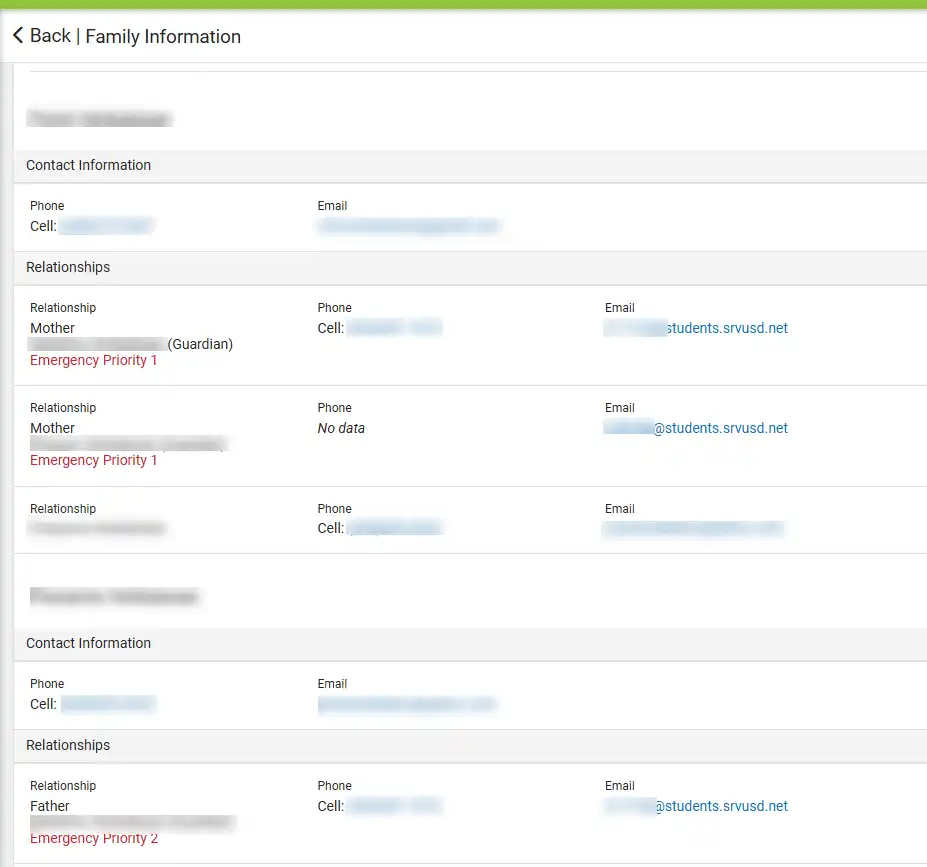
Step 2: Click on "More" and then select "Family Information" from the menu to view the information
View Demographics
Step 1: Tap the three horizontal bars("hamburger" icon) located in the top left corner. This will open the main menu.
Step 2: Click More
Step 3: Click Demographics
View Health
Step 1: Tap the three horizontal bars("hamburger" icon) located in the top left corner. This will open the main menu.
Step 2: Click More
Step 3: Click Health
Step 4: Click Immunizations to view immunization info
View Important Dates
Step 1: Tap the three horizontal bars("hamburger" icon) located in the top left corner. This will open the main menu.
Step 2: Click More
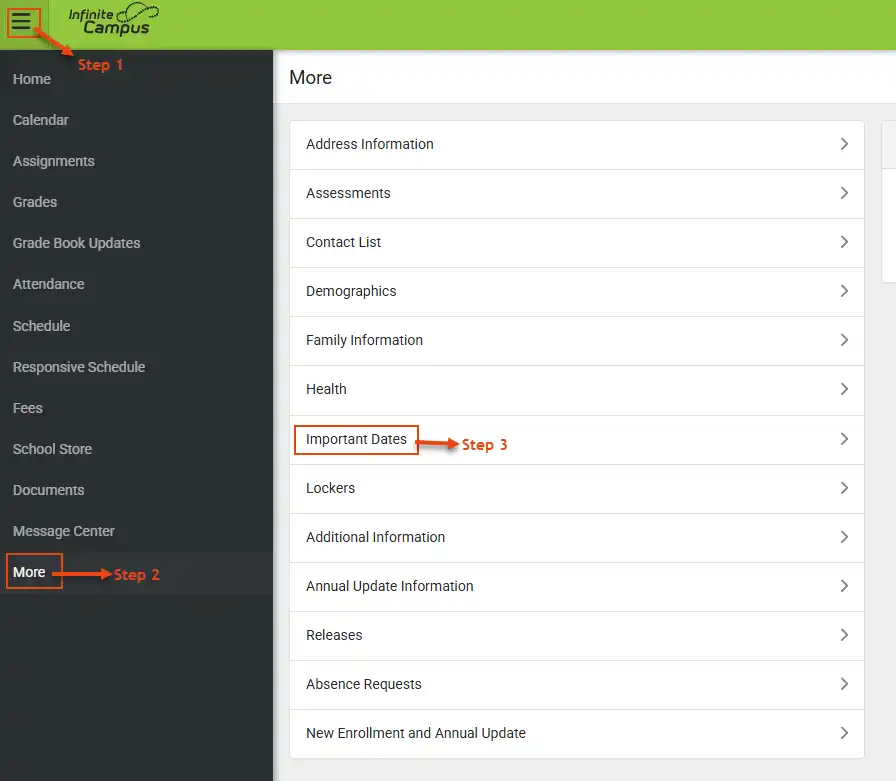
Step 3: Click Important Dates to view school recess and events
View Lockers Info
Step 1: Tap the three horizontal bars("hamburger" icon) located in the top left corner. This will open the main menu.
Step 2: Click More
Step 3: Click Lockers to view locker info
View Additional Information
Step 1: Tap the three horizontal bars("hamburger" icon) located in the top left corner. This will open the main menu.
Step 2: Click More
Step 3: Click Additional Information to view Parent's Rights Option
View Annual Update Information
Step 1: Tap the three horizontal bars("hamburger" icon) located in the top left corner. This will open the main menu.
Step 2: Click
More
Step 3: Click Annual Update Information to view info submitted during annual update
View Releases
Step 1: Tap the three horizontal bars("hamburger" icon) located in the top left corner. This will open the main menu.
Step 2: Click
More
Step 3: Click Releases to view releases info submitted during annual update


